# Home

### Edit Homepage

* Go to Pages > All Pages and find Homepage, click on Edit with Visual Composer

<figure><img src="https://1123633396-files.gitbook.io/~/files/v0/b/gitbook-x-prod.appspot.com/o/spaces%2FyUhatqR2ebxz11GdIGaG%2Fuploads%2F147W8guwnJBoMpGQchwq%2Fimage.png?alt=media&#x26;token=484b9098-a370-4543-9c15-666d4ae7c4d3" alt=""><figcaption></figcaption></figure>

* The homepage consists of several snippets for other pages like Abouts Us, Machines, Consumables and Events.

***IMAGE SLIDER***

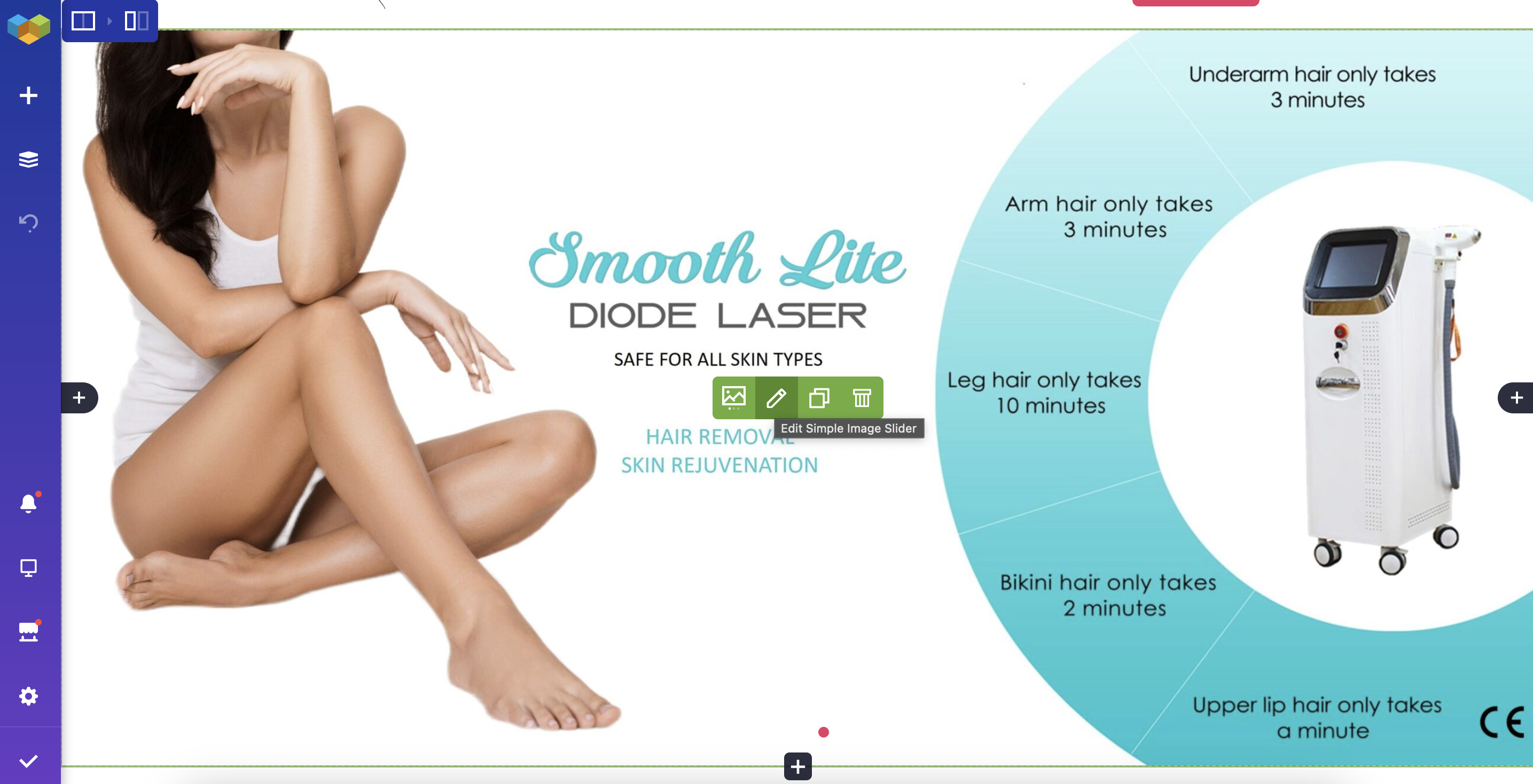
* To modify the image slider, hover over the slider and click the Pencil(Edit Simple Image Slider)

<figure><img src="https://1123633396-files.gitbook.io/~/files/v0/b/gitbook-x-prod.appspot.com/o/spaces%2FyUhatqR2ebxz11GdIGaG%2Fuploads%2FURsPGKOgJ9rn1x1rxCg7%2Fimage.png?alt=media&#x26;token=cbcbd9b8-e10c-41cb-976a-6009f6ea73a2" alt=""><figcaption></figcaption></figure>

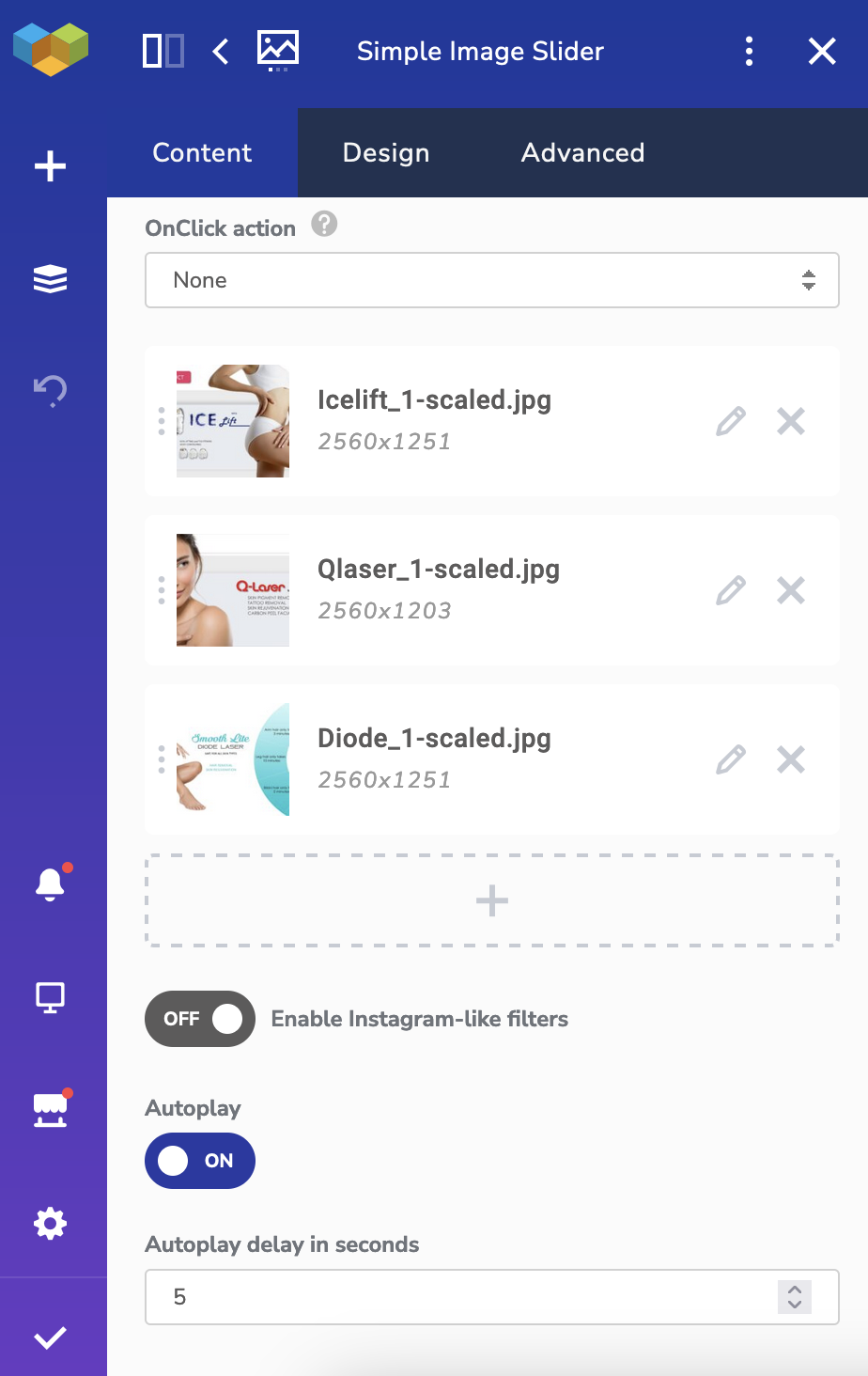
* Using the sidebar, you can opt to add, edit, remove or rearrange the order of images.&#x20;
  * Click on the + button to add images
  * Click on the pencil icon to edit/replace an image
  * Click on the X to remove an image
  * Drag the images using the three dots on the left hand side of the image to rearrange

<figure><img src="https://1123633396-files.gitbook.io/~/files/v0/b/gitbook-x-prod.appspot.com/o/spaces%2FyUhatqR2ebxz11GdIGaG%2Fuploads%2F12pChiAL7mkUwK7PFm3p%2Fimage.png?alt=media&#x26;token=ccebb29d-9216-4805-99c6-8f887e1da4d2" alt=""><figcaption></figcaption></figure>

***ABOUT US SECTION***

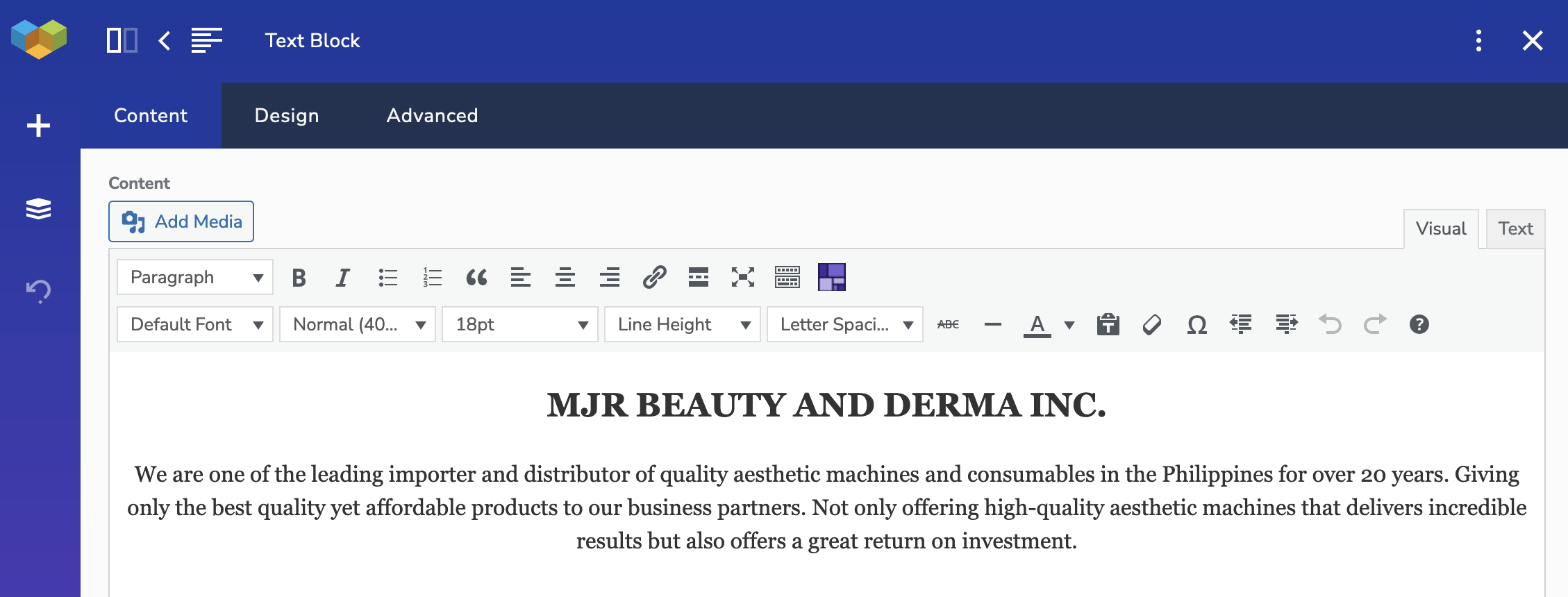
* To modify the about us snippet, hover over the slider and click the Pencil(Edit Text Block )

<figure><img src="https://1123633396-files.gitbook.io/~/files/v0/b/gitbook-x-prod.appspot.com/o/spaces%2FyUhatqR2ebxz11GdIGaG%2Fuploads%2FkNciPyB1MYZuXapur5GE%2Fimage.png?alt=media&#x26;token=5e1a13ca-ef60-4ebc-a6b4-c475fba6e99b" alt=""><figcaption></figcaption></figure>

* Use the sidebar to modify About Us snippet text

<figure><img src="https://1123633396-files.gitbook.io/~/files/v0/b/gitbook-x-prod.appspot.com/o/spaces%2FyUhatqR2ebxz11GdIGaG%2Fuploads%2FGtmepw3Qw1gye2dbU3ZI%2Fimage.png?alt=media&#x26;token=39b62ce4-5dee-4500-bab2-4e0190e0835f" alt=""><figcaption></figcaption></figure>

***MACHINES/CONSUMABLES SECTION***

* TEXT

  * To modify the machine/consumable text, hover over the section and click the Pencil(Edit Text Block )
  *

  ```
  <figure><img src="https://1123633396-files.gitbook.io/~/files/v0/b/gitbook-x-prod.appspot.com/o/spaces%2FyUhatqR2ebxz11GdIGaG%2Fuploads%2Fan42bOqrhaC5IdfloUS3%2Fimage.png?alt=media&#x26;token=900fe6af-7b81-4c40-b3e7-855d5b8686b6" alt=""><figcaption></figcaption></figure>
  ```

  * Use the sidebar to modify machine/consumable text
  * &#x20;![](https://1123633396-files.gitbook.io/~/files/v0/b/gitbook-x-prod.appspot.com/o/spaces%2FyUhatqR2ebxz11GdIGaG%2Fuploads%2F5JdjO7jcxzllcm0DAJbr%2Fimage.png?alt=media\&token=d04a1f35-a32d-42d5-a64d-43f9eaa2d2ce)

* IMAGE

  * To modify the machine/consumable text, hover over the section and click the Pencil(Edit Single Image)
  *

  ```
  <figure><img src="https://1123633396-files.gitbook.io/~/files/v0/b/gitbook-x-prod.appspot.com/o/spaces%2FyUhatqR2ebxz11GdIGaG%2Fuploads%2Ff5ypmT2izlXmfeLV8Mfc%2Fimage.png?alt=media&#x26;token=14a09f44-01cf-466b-90e8-3edd31cf36b4" alt=""><figcaption></figcaption></figure>
  ```

  * Use side bar to replace image by clicking on pencil icon and uploading new image
  *

  ```
  <figure><img src="https://1123633396-files.gitbook.io/~/files/v0/b/gitbook-x-prod.appspot.com/o/spaces%2FyUhatqR2ebxz11GdIGaG%2Fuploads%2FH9hHqL0JClTuTv5r3Oke%2Fimage.png?alt=media&#x26;token=205ba1c6-215f-449a-a61e-c5a9fa7ec813" alt=""><figcaption></figcaption></figure>
  ```

* CATEGORIES

  * To modify the machine/consumable gallery, hover over the section and click the Pencil(Edit Image Gallery)

    <figure><img src="https://1123633396-files.gitbook.io/~/files/v0/b/gitbook-x-prod.appspot.com/o/spaces%2FyUhatqR2ebxz11GdIGaG%2Fuploads%2Fv3tXdGJXp1h3SytprKz6%2Fimage.png?alt=media&#x26;token=ce5024c8-7e05-4106-9758-1629f1210dd2" alt=""><figcaption></figcaption></figure>
  * Using the sidebar, you can opt to add, edit, remove or rearrange the order of images.&#x20;
    * Click on the + button to add images
    * Click on the pencil icon to edit/replace an image
    * Click on the X to remove an image
    * Drag the images using the three dots on the left hand side of the image to rearrange
  *

  ```
  <figure><img src="https://1123633396-files.gitbook.io/~/files/v0/b/gitbook-x-prod.appspot.com/o/spaces%2FyUhatqR2ebxz11GdIGaG%2Fuploads%2FHvca9R9WHooNqlDf50BX%2Fimage.png?alt=media&#x26;token=c470e829-7243-4565-ae25-d0c7c54ecdd8" alt=""><figcaption></figcaption></figure>
  ```

  * Make sure to define a Caption as this will control the label to be displayed on top of that image.
  *

  ```
  <figure><img src="https://1123633396-files.gitbook.io/~/files/v0/b/gitbook-x-prod.appspot.com/o/spaces%2FyUhatqR2ebxz11GdIGaG%2Fuploads%2FKKnWL0MBobAkUqggXIRQ%2Fimage.png?alt=media&#x26;token=c214387f-ca0a-49d3-b8c4-3c901182a150" alt=""><figcaption></figcaption></figure>
  ```

***IMAGE SECTION***

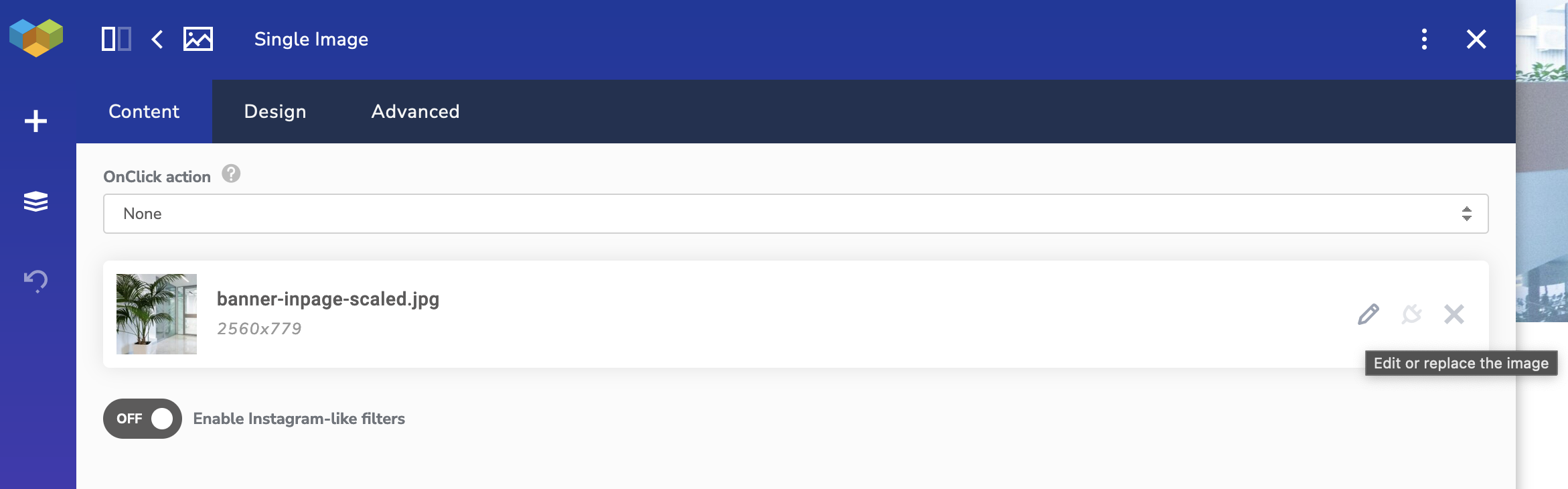
* To modify the image, hover over the slider and click the Pencil(Edit Single Image)

<figure><img src="https://1123633396-files.gitbook.io/~/files/v0/b/gitbook-x-prod.appspot.com/o/spaces%2FyUhatqR2ebxz11GdIGaG%2Fuploads%2FOZkqNqR2ZIRtXVNuTbfP%2Fimage.png?alt=media&#x26;token=5da2be59-7660-42c4-94b8-cfb09d998b84" alt=""><figcaption></figcaption></figure>

* Use side bar to replace image by clicking on pencil icon and uploading new image

<figure><img src="https://1123633396-files.gitbook.io/~/files/v0/b/gitbook-x-prod.appspot.com/o/spaces%2FyUhatqR2ebxz11GdIGaG%2Fuploads%2FGArvhFM8c7qhkb03uXRV%2Fimage.png?alt=media&#x26;token=e2153c1c-9254-42e4-aaf6-87c16d09bc0b" alt=""><figcaption></figcaption></figure>

***EVENTS/BLOG SECTION***

* **TEXT**

  * To modify the blog/events text, hover over the section and click the Pencil(Edit Text Block )
  *

  ```
  <figure><img src="https://1123633396-files.gitbook.io/~/files/v0/b/gitbook-x-prod.appspot.com/o/spaces%2FyUhatqR2ebxz11GdIGaG%2Fuploads%2FjGXF5cqkvgUjTiqvyzVT%2Fimage.png?alt=media&#x26;token=e372e599-ab89-4349-8228-e1e3af133138" alt=""><figcaption></figcaption></figure>
  ```

  * Use the sidebar to modify the text
  * ![](https://1123633396-files.gitbook.io/~/files/v0/b/gitbook-x-prod.appspot.com/o/spaces%2FyUhatqR2ebxz11GdIGaG%2Fuploads%2Fl5cZt3vK08EHZyfyuUzs%2Fimage.png?alt=media\&token=de64d961-0bb7-4b97-ad14-66c7febf9c64)
* EVENT LIST
  * This will be automatically populated based on the event/blog postings

Make sure that all changes are saved by doing the following at either each step or after all changes have been made

* To Save, Click on Check mark and wait for successful saving prompt

  ![](https://1123633396-files.gitbook.io/~/files/v0/b/gitbook-x-prod.appspot.com/o/spaces%2FyUhatqR2ebxz11GdIGaG%2Fuploads%2FngGaCuluXeKFiNoEJN8G%2Fimage.png?alt=media\&token=94e579c7-a1ca-4589-a3d3-c1527fe51b62)
* Click on Options > Back to Wordpress to return to Wordpress&#x20;

![](https://1123633396-files.gitbook.io/~/files/v0/b/gitbook-x-prod.appspot.com/o/spaces%2FyUhatqR2ebxz11GdIGaG%2Fuploads%2Fo4pyVIiDlhBJNXzYr41z%2Fimage.png?alt=media\&token=e768e974-75dd-426d-8074-dfa69f72afd6)